Thursday, September 17, 2015

Best Free WiFi Hotspot Creator Software for Windows Computer

turn your computer into wifi hotspot for free

What is a WiFi Hotspot?


Wi-Fi Hotspot is a kind of connection platform which helps establishing a Wi-Fi network in a limited space area. With the WiFi network, the nearby wireless devices like Android smartphone, iPhone, iPad, laptop/notebook, etc. can have a quick and convenient access to the internet connection shared by the WiFi network.

To make a WiFi hotspot, you can either buy a wireless router or use specific software which helps create WiFi hotspot without wireless router. To buy a wireless router, you may need to pay a expensive cost. However, WiFi hotspot creator app can help you save the money and create a free and stable WiFi hotspot on your devices.

Today I will show you how to use your Windows computer as a free WiFi hotpot, including laptop/notebook or a desktop that has a working wireless adapter. 

How to Use Windows Computer As a WiFi Hotspot - Create WiFi Network on Windows PC


Firstly, you need a WiFi hotspot maker app. There are many such apps on the internet, some of which are paid and the others are free. Here I will recommend the best free app called OSToto Hotspot which is easily accessible and open to download on official site (www.drivehtelife.com) and most of the download sites, including CNET, Softpedia, MAJORGEEKS, Softonic, Informer Software and so on. It is extremely useful and very popular all across the world. 

It is super easy to turn your Windows computer into a WiFi hotspot as long as the internet connection is available and the wireless adapter is working well. Let's start the easy guide!

Step 1: Download and Install the Free WiFi Hotspot Creator Software OSToto Hotspot

You'd better download OSToto Hotspot from official site because you can always get the latest version here. After the download is done, click the installer to install it. 

Step 2: Turn on WiFi Hotspot When the Installation is Done

The WiFi hotspot will be automatically turned on after OSToto Hotspot is installed and launched. You can disable this option if needed from the Settings. A default SSID (WiFi name) and password (1234567890) will be assigned, you can freely change it by clicking the Edit icon. And you'd better change the password to prevent others from connecting without your permission.
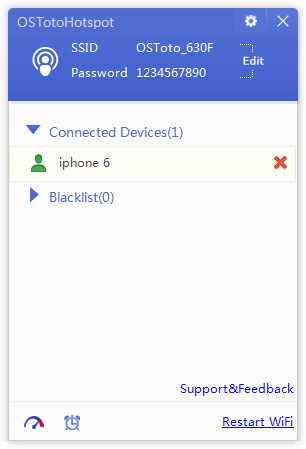
wifi hotspot sharing

Now the WiFi hotspot creation is done and you can enjoy the free and stable WiFi shared by OSToto Hotspot on your portable devices, such as android mobile phone, Windows tablet, iPhone, iPad, Kindle, laptop or notebook and so on.

What Computer and Mobile Devices are Supported by OSToto Hotspot


All computer with a working wireless card running on Windows 10, Windows 8.1, Windows 8/7/XP/Vista will be compatible with OSToto Hotspot.
Popular laptops used by users are Asus, Dell, Acer, Sony, HP, Toshiba, Lenovo, Samsung, Gateway and more.
Commonly used portable devices are iPhone 6, iPhone 6 Plus, iPhone 5S, 5, 4S; iPad Pro, iPad Air/ Air 2, iPad mini, iPad 4, iPad 3; Samsung Galaxy, Xiaomi, Sony, OPPO, Vivo and more; Kindle, Windows tablet and all that has the function to search for a WiFi network and open the WLAN.

Click here for more solutions to build WiFi hotspot on the newest Windows 10.

Tip: If you are unable to turn on the WiFi hotspot, check if the wireless adapter is working normally. If needed, update the wireless driver to fix your problem.


Wednesday, September 2, 2015

Top Ways to Fix "Laptop Touchpad Not Working"

Laptop's Touchpad Stops working


"The built-in Synaptic touchpad on my notebook no longer works, making Windows nearly impossible to use. Even the touchpad scrolling not working! I am so disappointed because I don't have a mouse here."

Imagine that without a mouse, touchpad or other pointing device, how can you use a Windows PC? So it is really disappointing when your touchpad suddenly stopped working without a mouse on hand.

This page covers several common fixes to resolve on-functioning touchpad.

How to Troubleshoot Touch Pad Not Working


Method 1. Reboot Your Laptop


The first fix should be painfully obvious - Restart your laptop. If the problem just started, this may be the easiest troubleshooter. We know, anything that's got in a mess gets the chance to start over by computer restart. The OS and the software gets to a new start with a reboot.

Method 2. Update Touchpad Driver


If you got this problem in a Windows upgrade like from Windows 7/8 to Windows 10, the most possible cause is that Windows installed an incorrect driver for your touchpad. If this is the case, don't worry! A simple touchpad driver update will fix it.

To update driver, you have 2 ways.

The 1st Way: Use 3rd party driver downloader and updater tool

Here I recommend free software DriveTheLife and take it as the example to show how to update touchpad driver automatically.
  • Then, install and launch it, an automatic driver scan will begin. This is collecting and analyzing your Windows drivers. Any drivers in question will be listed after scan.
  • Next, check the notice message to see whether your touchpad driver is normal. If not, you just need to tick touchpad and click Start to download and install a correct touchpad driver.

touchpad not working

  • At last, reboot your computer to let the new driver take effect.

The 2nd Way: Download driver from manufacture's website and install it manually

  • Firstly, go to the manufacture's website. It is either your touchpad manufacture's website like Synaptic or your notebook manufacture like Asus, Dell, Lenovo, Samsung, Toshiba, Acer, HP, Sony and so on.
  • Then search with "touchpad model and name + driver" inside. Note that you should download the right driver depending on your OS (Windows 7, 8 or Windows 10) with 32bit or 64bit.
  • Next, download and install it manually.
  • At last, restart Windows after the installation is done.

 Method 3. Change Mouse & Touchpad Settings 


  • Navigate to the Start Menu type change mouse settings in the Search field, then press Enter.
  • In the mouse Properties window, click the tab that seems to be for your touchpad (the name varies from model to model). Make sure that everything is enabled. If there are Settings buttons, make sure that everything is on.
  • Select no delay and click "additional mouse options"
  • In the new window for mouse options you will see ELAN tab (maybe the name of your pad is different). If you see ELAN pad disabled, enable it and deselect the option "disable when external USB point xxxxxxx"
  • Click Apply and OK


Method 4. Repair Corrupted Operating System Files


Another possible cause for a malfunctioning touchpad is corrupted operating system files.
You have 2 ways to fix the corrupted system files.

1. Restore your computer to a restore point at a date prior to when the touchpad stopped working.

2. Perform an complete restore process of the Windows OS, that is, a clean install of Windows.  

If you are unable to resolve your laptop touchpad not working issue after trying the solutions on this page, the touchpad is likely non-functional due to a hardware problem. In this case,  you are recommend to send your laptop to a computer repair shop for further analysis, or buy a wireless/wired/bluetooth mouse to take its place.

Related Post:
Audio not working after Windows 10 update
How to fix display card not working


Friday, August 28, 2015

160WiFi Is Changed to OSToto Hotspot as A Wi-Fi Hotspot Creator -- New Version Released


Los Angeles, Calif. August, 28th, 2015 — 160WiFi, as the top free Wi-Fi hotspot creator utility by Drive The Life Co., Ltd., has received great reviews from millions of users. For better understanding of more users and for the development with hot market trends, it has been changed into the new name OSToto Hotspot. Today this new version (4.1.9.2) is released with the new name as well as several big updates. Now all users can download this new upgrade version Wi-Fi hotspot creator from the official website.

OSToto Hotspot (originally named 160WiFi) is based on Windows computer with user-friendly design. It helps users to turn a laptop, notebook, or desktop into a Wi-Fi wireless access point so that internet connection sharing with other Wi-Fi enabled devices becomes extremely easy. You can also get your own customized version for personality by contacting with the company. This new version has several great upgrades.

New Updates on OSToto Hotspot

Besides the alteration of the name, some new updates are added to OSToto Hotspot.
  • Set up free Wi-Fi hotspot much faster – in seconds
  • 1 click to timing shutdown on computer without commands
  • Remove the phone management function
  • 2 Wi-Fi sharing modes available to insure high efficiency of Wi-Fi hotspot
  • New , clear and simple UI
  • Support the new Windows 10

Price and Availability

OSToto Hotspot is now available to all users for free. For more information, or to free download this latest version, please visit: http://www.drivethelife.com/free-wifi-hotspot-creator.html

About Drive The Life Co., Ltd.

Drive The Life Inc. is the leading computer software provider and is dedicated to developing powerful and user-loving software on managing Windows device drivers and Wi-Fi sharing. Over years of development, Drive The Life Inc. is now favored by majority of users and becomes quite popular all over the world.

Press Contact

Website: www.drivethelife.com
Contact email: support@drivethelfie.com


Tuesday, August 11, 2015

Bluetooth Devices Not Working after Installing Windows 10

fix bluetooth not working on windows 10

After the Windows 10 upgrade by Microsoft, various issues happened on bluetooth devices. 

1. "I just bought some new bluetooth headphones and they are working great with the new  Windows 10 upgrade. But my phone is not able to send files through bluetooth OR WiFi. It shows that they are paired up and that was not problem, but there is no transfer taking place. It is quite annoying."

2. "Since I installed Windows 10 yesterday (upgrade from 8.1), my Microsoft Bluetooth Notebook Mouse 5000 (yes, yes, Microsoft!) is no longer detected.
I'm trying everything I can to get it working on my Samsung laptop but to no avail.
Microsoft don't even offer a single driver download for this mouse so I really don't know what to do."


3. "After 8.1 to 10 Windows update, bluetooth has issues on a Pavillion x2.
No bluetooth icon.
Device manager says device fine.
Update driver icon for bluetooth device dimmed could not select.
Uninstalled device, still no work.
Digging into device manager for the Mediatec bluetooth adapter, I found ERR 441 kernel PnP."


How to Resolve Bluetooth Issues on Windows 10?


For bluetooth mouse, try the fix below:
  • Remove the mouse from Settings > Devices > Bluetooth > Manage Bluetooth Devices
  • Uninstall the Generic Microsoft Bluetooth device: Device Manager > Bluetooth. Click "Scan for hardware changes", then Windows will automatically identify the bluetooth adapter and install a correct device driver
  • Press pairing button on mouse
  • Go back to Settings > Devices > Bluetooth> Manage bluetooth devices and see if your mouse is listed as "ready to pair".

For bluetooth driver issues, try the fix below:

1. Completely uninstall the old bluetooth driver
  • Start > Input Device Manager > Press enter to open the Device Manager
  • Scroll down the devices list and find your Bluetooth device
  • Spread it and double click to open the Properties window
  • Click Driver tab > Uninstall
Note that sometimes there will be leftovers and broken registry files in the uninstallation from Device Manager. In this case, it is important to use automatic driver uninstaller to completely uninstall drivers.

2. After the driver uninstallation, reinstall the new driver for bluetooth device

To reinstall the driver, you can restart computer and let Windows search for and download, install driver.

However, I would recommend third party automatic driver install tool which will identify the missing driver and install correct and best-matched driver with one click.
Read more about uninstall and reinstall drivers for Windows here.

If the methods outlined above still can't solve your problem, try installing the package from https://www.microsoft.com/en-us/download/details.aspx?id=48231. After that, restart your computer.

Thursday, August 6, 2015

Audio is Not Working after Windows 10 Update - How to Fix

audio not working after windows 10 upgrade

After Windows 10 update, there are similar audio problems on various brand computers.

On HP Computer:


"I recently upgraded from Windows 8.1 to Windows 10 but now the audio isn't working. I've tried troubleshooting but the system can't find a problem. I also tried to reinstall the audio drivers but can't find any available through HP."

On Lenovo Computer:

"After my upgrade to Windows 10 on my Lenovo G780, it seems like my audio isn't functioning anymore. I tried to plug in my headset as well to check if I had audio coming through that, but it does not appear in the Playback Devices window when plugged.

The laptop comes with Conexant SmartAudio HD and also lists High Definition Audio Device under Device Manager.

Could anyone help me out and let me know if there's some problems I am overseeing. Any help would be appreciated. Thank You."

On Asus Computer:


"I upgraded from 8.2 to Windows 10. Audio not working now. I have an Asus G55VW laptop. Anyone have a solution?

And more...

How to Fix Audio/Sound Problem after Windows 10 Upgrade?


As to the audio issues, I have listed several fixes below. Try them out.

Fix 1: Adjust Bit-rate of Your Playback Device

  • Right click on Sound icon to open Playback devices
  • Choose your current playback device
  • Navigate to Properties and click on Advanced
  • Choose lower or higher bit-rate (use 24bit/44100 Hz or 24bit/192000Hz - it depends on the device).

Fix 2: Shut Download Computer Completely and Then Reboot


Shutting down computer completely, which is quite different from shutting it down in the hybrid shut down mode.
  • Right click Start > Properties > Start menu > Scroll to Shut down or sign out and select Shut down from the list.
  • After it completely shut down, reboot it again. Note that this boot-up may take a little longer than usual.
  • Now check if everything is in order.

Fix 3: Uninstall and Reinstall Audio Driver


If you get a driver error with you also and are told to re-install the driver or reboot, then the problem may be resulted from incorrect driver. You can uninstall the old driver and install a proper driver for it. To do this , I will introduce a super easy tool DriveTheLife, a free driver finder and downloader program.

Learn more about removing and reinstalling drivers from Windows computer.

If it failed, try going to manufacture's website to download and install the latest drivers. However, be sure to uninstall drivers before installing new driver or there
may be conflicts because of the old driver's leftover or broken registry files.

Fix 4: Uncheck Enable Audio Enhancements


If you are using a Relteak audio, then follow this:
  • Right click on audio icon from taskbar
  • Click your current playback device 
  • Select Speakers/HP > Properties > Advanced 
  • Uncheck "Enable audio enhancements" option
  • Click Apply and then OK.
fix sound problem on windows 10


Tuesday, August 4, 2015

Fix Nvidia Driver Issues after Windows 10 Upgrade


display driver is not working in Windows 10

After the Windows 10 upgrade, users are facing various glitches including display crashes, WiFi cannot connect, bluetooth issues, audio not working. And the most reported issue is the GPU driver is not working. Thus, we will discuss how to fix this problem in this article.

How to Fix Display Driver Issue after Windows 10 Update?


The most basic and simple fix is to restart the system and see if it helps. However, in the Windows 10 update, this is not always working. So let's try other solutions.

Solution 1: Install the WHQL Driver Launched by NVIDIA


After the flowing reports from users that NVIDIA driver can't work on Windows 10, Nvidia released new driver 353.62 quickly to fix this issue. To install the up to date 353.62 driver, please follow the steps below:

1. Download Nvidia 353.62 driver from http://www.geforce.com/drivers/results/87783, it is labeled with WHQL and the release date is July 29th, 2015. 
2. It has a size of 278.91MB so you may need to wait a while until the download is done.
3. Install: When the driver download is complete, right click the installer and "Run as administrator".  Since the driver installation may fail without proper privileges, running as administrator is quite crucial.
4. Done and Restart Computer: Follow the onscreen guide to complete the driver installation and after it is done, restart computer to ensure the driver installation is taking effect normally.

Solution 2: Automatically Install Display Driver


In this weird case, automatic driver fix tool is important because it will completely remove the old and incompatible drivers and install the right ones automatically. From Device Manager, it might not completely uninstall the drivers manually so the problem may not be fixed.

Now let's try the free driver fix tool out: DriveTheLife, a free and easy-to-use, simple-interface program designed to help scan and find driver issues and complete the repair/update with one click.

Hope you can get through the Windows 10 update and fix problems. 

Related post:
3 Ways to Update Driver and Resolve Computer Hardware Issues 
Fix Network Adapter Drivers

Thursday, July 30, 2015

Windows 10 Driver Compatibility Issues - How to Resolve

Windows 10 is released and the big day is made, uh? Have you already installed Windows 10? Are you fed up with driver compatibility issues after the upgrade?

mandatory automatic windows update

Mandatory Automatic Updates on Windows 10 - Benefits and Drawbacks


Have you ever read the EULA when installing Windows 10? The new rule is much different than before and the biggest concern is "automatic updates without any additional notice" which basically indicates mandatory automatic Windows updates regardless if you want them or not.

It can't be denied that there are many benefits of getting Windows updates because you can always keep your computer up to date and benefit from the new features. However, there are inevitable side effects like many users reported:

"Automatic download, especially for drivers is a bad idea. They should be optional. A bad graphics driver can screw your whole week!"

"Please, stop with automatic GPU drivers download in the Windows Update."

Except the driver issues, users are also reporting problems on bluetooth and WiFi connectivity.

"Does anyone know if Bluetooth is working properly...? Only reason I uninstalled Windows 10 Preview was because Bluetooth speaker connection was hit and miss. It works flawlessly on 7"

"Network adapter for WiFi need to be reset on every boot."

There are more reports about the same issues and other such as problems with Intel and AMD, audio, mouse and touchpad drivers. 

How to Resolve Driver Issues after Upgrading to Windows 10?


It is never an easy task to solve driver problems especially you are not familiar with computer working and connecting principle. Generally, there are 3 ways to fix driver issues. If you are not good at solving problems by your own, maybe I would introduce you an automatic driver repair tool DriveTheLife, a free and professional driver updater, finder and manager.

It will automatically scan your drivers and identify the ones in problem, missing, outdated, corrupted and then install the right ones with one click. Try it out to see if the driver problem is cleared up.

driver compatibility issue


No Internet after System Win 10 Update?


If your case is that there is no internet connection after the Windows 10 update, you may need to install a special tool called DriveTheLife for Network Card which will download and install the best-matched network driver without internet connection.

Extended Tip

Share Your Computer Internet with Other Devices without Wireless Router